
Telegram bot
This page explains how to connect Telegram to pt-tools through the Telegram Bot API (long polling), so that you can control pt-tools with commands in a private chat and receive system notifications.
1. Before you start
- A Telegram account
- In mainland China:
api.telegram.orgcan only be reached through a proxy. pt-tools supports two ways of using one (see section 6):- the
HTTPS_PROXYenvironment variable of the system; - a
proxy_urlin the channel's settings, so that each channel can use its own proxy.
- the
2. Creating a bot with BotFather
Search for
@BotFatherin Telegram and press Start, or send it a messageSend
/newbotBotFather asks for the bot's display name (anything, such as
My PT Tools Bot)Then for the bot's user name (unique across Telegram, ending in
botorBot, such asmypts_bot)Once the bot is created, BotFather replies with something like this:
Done! Congratulations on your new bot. You will find it at t.me/mypts_bot.
Use this token to access the HTTP API:
123456789:ABCdefGHIjklMNOpqrstUVWxyz
The long string is the
bot_token, in the formnumeric ID:letters and digits. Keep it safe.
WARNING
The bot token is as good as the bot's password. Do not post it in a public channel or a screenshot, and never commit it to a repository.
3. Finding your own chat_id
The chat_id is the destination pt-tools sends notifications to. For a private chat, the chat_id is your numeric Telegram user_id.
Steps:
Send any message (such as
hello) to the bot you created, to start the conversationOpen this address in a browser (replace
<TOKEN>):https://api.telegram.org/bot<TOKEN>/getUpdatesIn the JSON it returns, find the
"id"under"from"or"chat":json{ "ok": true, "result": [ { "message": { "from": { "id": 123456789, "first_name": "Alice", ... }, "chat": { "id": 123456789, ... }, "text": "hello" } } ] }Here
123456789is your user_id, which is also thechat_idof the private chat.
💡 Look for
from.idorchat.idin the JSON: that number is your Telegram user_id.
No result? The bot has not received any message yet. Send it
hellofirst, then open getUpdates again.
4. Creating the Telegram channel in the web UI
Open the pt-tools web UI, go to ChatOps → Notifications (消息通知) and click Add channel (添加通道):
- Choose Telegram as the channel type, enter a channel name and the bot token, and click Create channel (创建通道).
- In the channel list, click the new channel to open its details.
- Under Credentials and connection (凭证与连接), fill in the fields below and click Save credentials (保存凭证). The channel reconnects with the new settings as soon as they are saved.
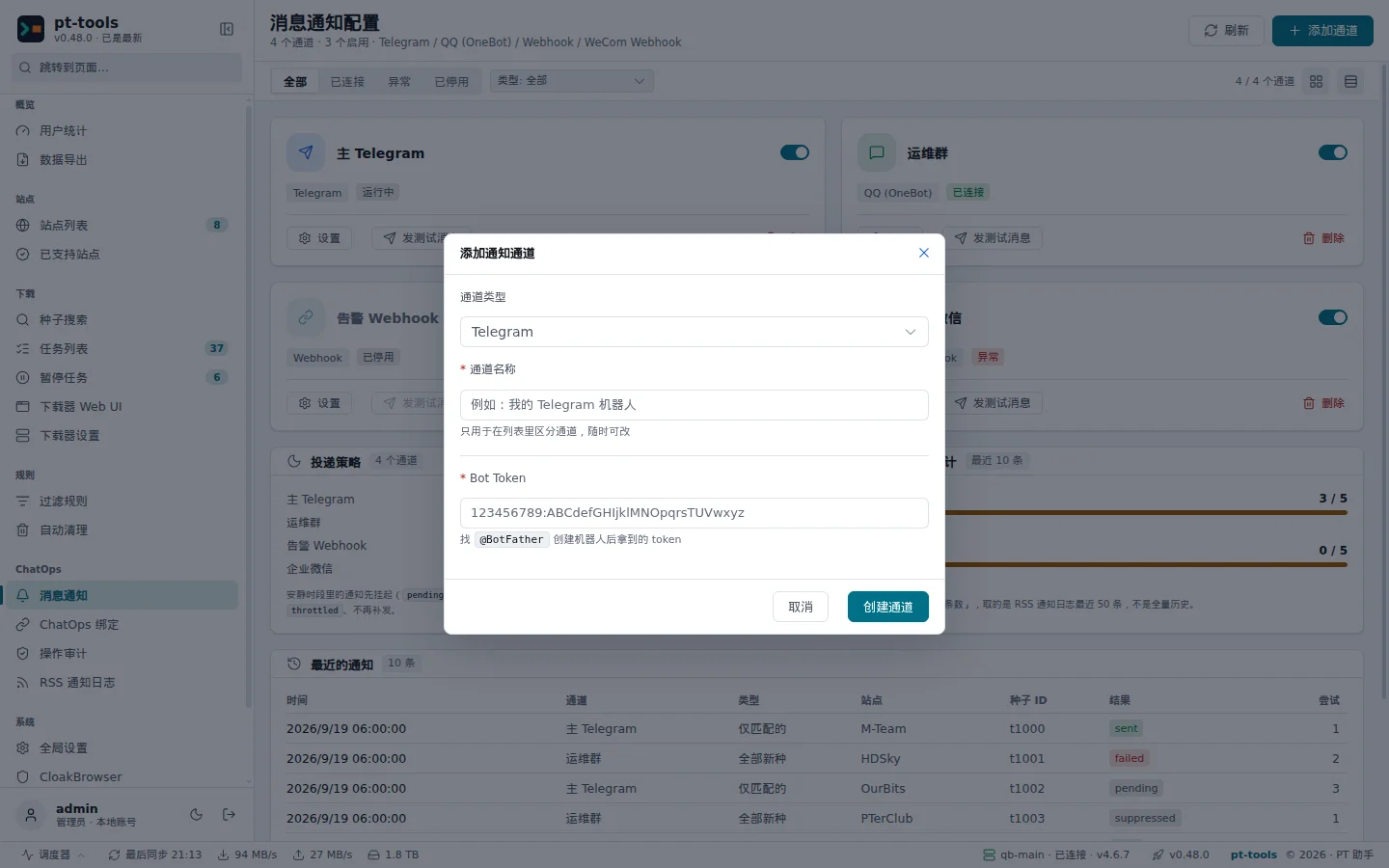
The Add channel (添加通道) dialog: choose the channel type, enter a name and the bot token, and click Create channel (创建通道).
What the fields mean
| Field | Purpose |
|---|---|
allowed_users | The Telegram user_ids that may talk to the bot |
admin_users | May also talk to the bot; when default_chat_id is empty, the test message goes to the first of them |
default_chat_id | Where notifications go: pt-tools delivers the notifications it sends to this chat_id |
- Incoming messages: only user_ids listed in
allowed_usersoradmin_userscan talk to the bot; anyone else receives a refusal (denied:not_in_whitelist). When both lists are empty, every message is refused; outbound notifications are not affected. - Command permissions: being able to talk to the bot is not enough to run commands; the account must also be linked with a binding code. At present every linked account has admin rights: it can run
/pause,/resume,/delete,/addrss,/delrssand/unbind, whether it is listed inallowed_usersor inadmin_users. So give binding codes only to people you trust.
For yourself only: set admin_users to your user_id and default_chat_id to your user_id, leave allowed_users empty, then link your account with a binding code.
Shared with others: add the user_ids of the members who should be able to talk to the bot to allowed_users, and give binding codes only to those who need to send commands. A member who is not linked receives the reply 请先 /bind <绑定码> 完成绑定 ("link first with /bind followed by the code") when sending a command.
The credential fields
| Field | Value | Notes |
|---|---|---|
| Bot Token | 123456789:ABCdef... | The token from BotFather |
| Allowed users (允许用户, allowed_users) | Empty, or other members' user_ids | Separated by commas; see "What the fields mean" above |
| Admin users (管理员用户, admin_users) | your user_id | Separated by commas; see "What the fields mean" above |
| Default Chat ID (默认 Chat ID) | your user_id | A numeric user_id, or @channelusername for a public channel |
| Proxy URL (代理 URL, optional) | http://127.0.0.1:1080 | The proxy to reach Telegram through, if one is needed (section 6) |
The long-polling timeout is fixed at 30 seconds; there is nothing to set.
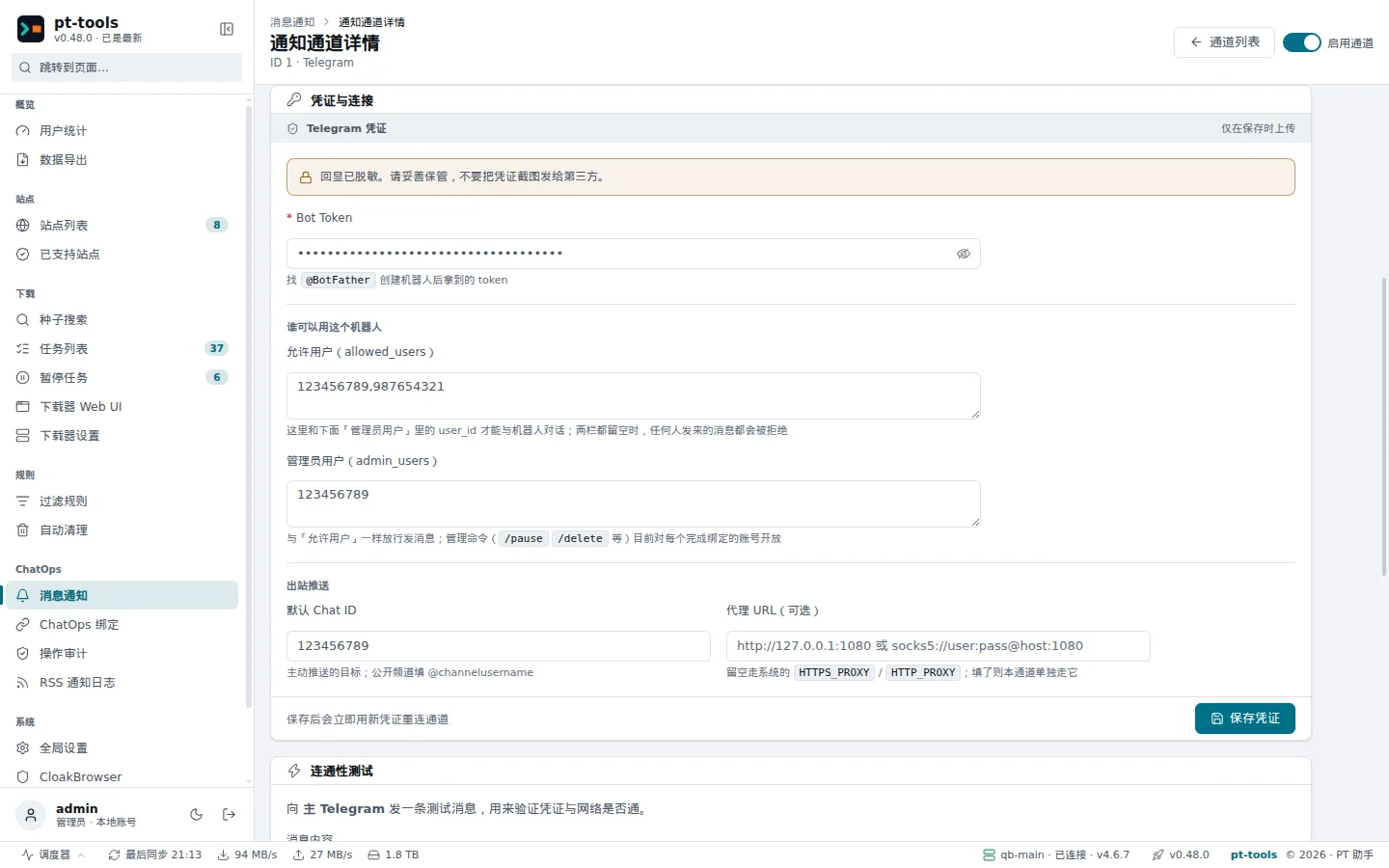
Web UI → the Telegram channel's details → Credentials and connection, showing every field, including the proxy URL.
After saving, the channel's status shows Running (运行中), which means the channel has started; whether it can reach Telegram's servers is settled by the test message in the next section.
5. Checking, linking and trying commands
Sending a test message
Click Send test message (发测试消息) on the channel's card in the list, or Send test message (发送测试消息) under Connectivity test (连通性测试) on the channel's details page.
If a test message from the bot arrives in Telegram, outbound notifications work.
Generating a binding code and linking
In the web UI, open ChatOps → ChatOps binding (ChatOps 绑定) and click Generate binding code (生成绑定码):
- Choose the Telegram channel you set up above
- Leave the validity at 5 minutes (the default)
- Click Generate
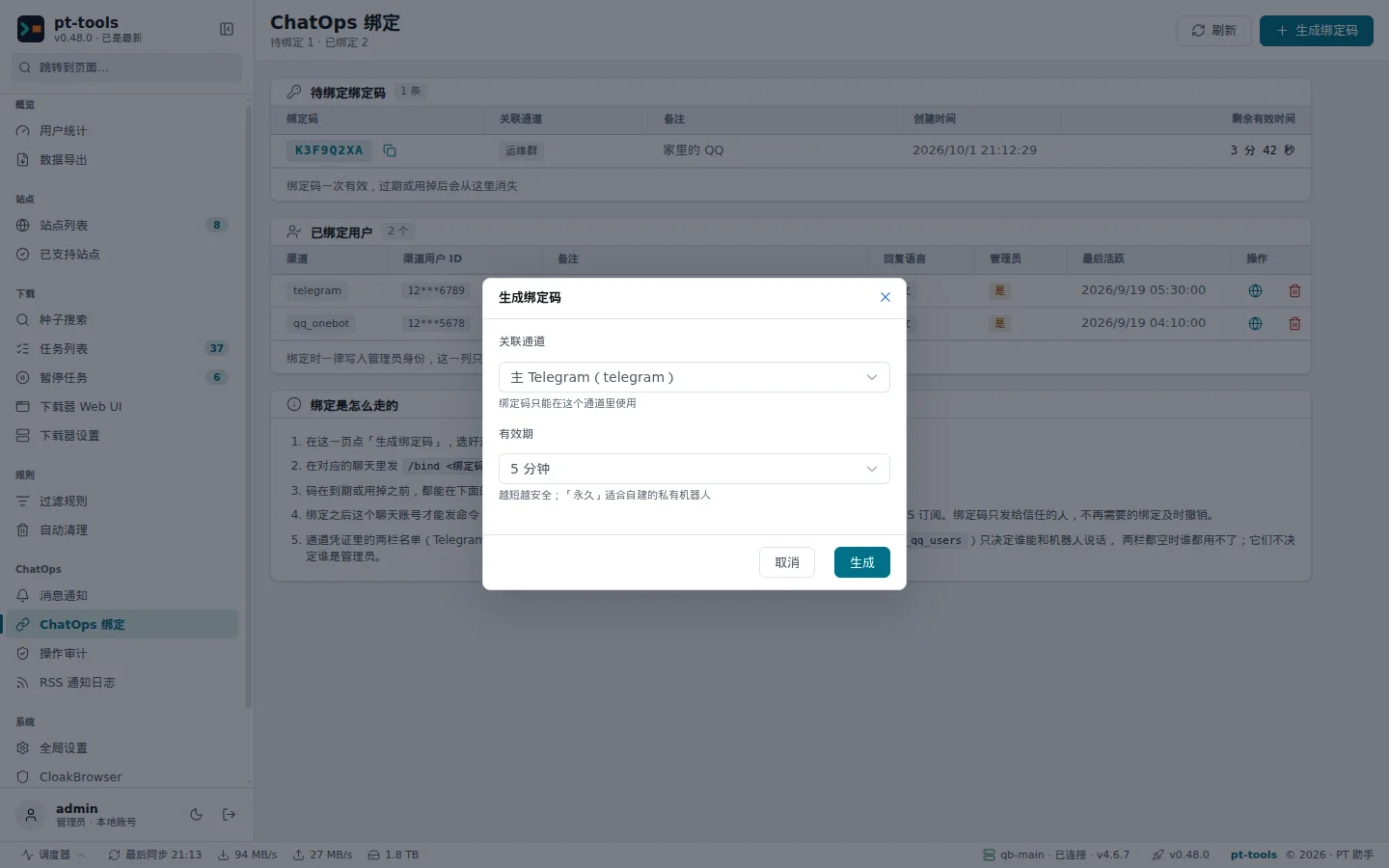
Once generated, the code appears in the Pending (待绑定) list: 8 characters, without easily confused characters such as 0/O/1/I/L.
Copy the 8-character code (such as A3F7KP2M) and send it to the bot in a private Telegram chat:
/bind A3F7KP2MWhen the bot replies 绑定成功 ("linked"), you are done. Your account then appears in the Linked users (已绑定用户) list.
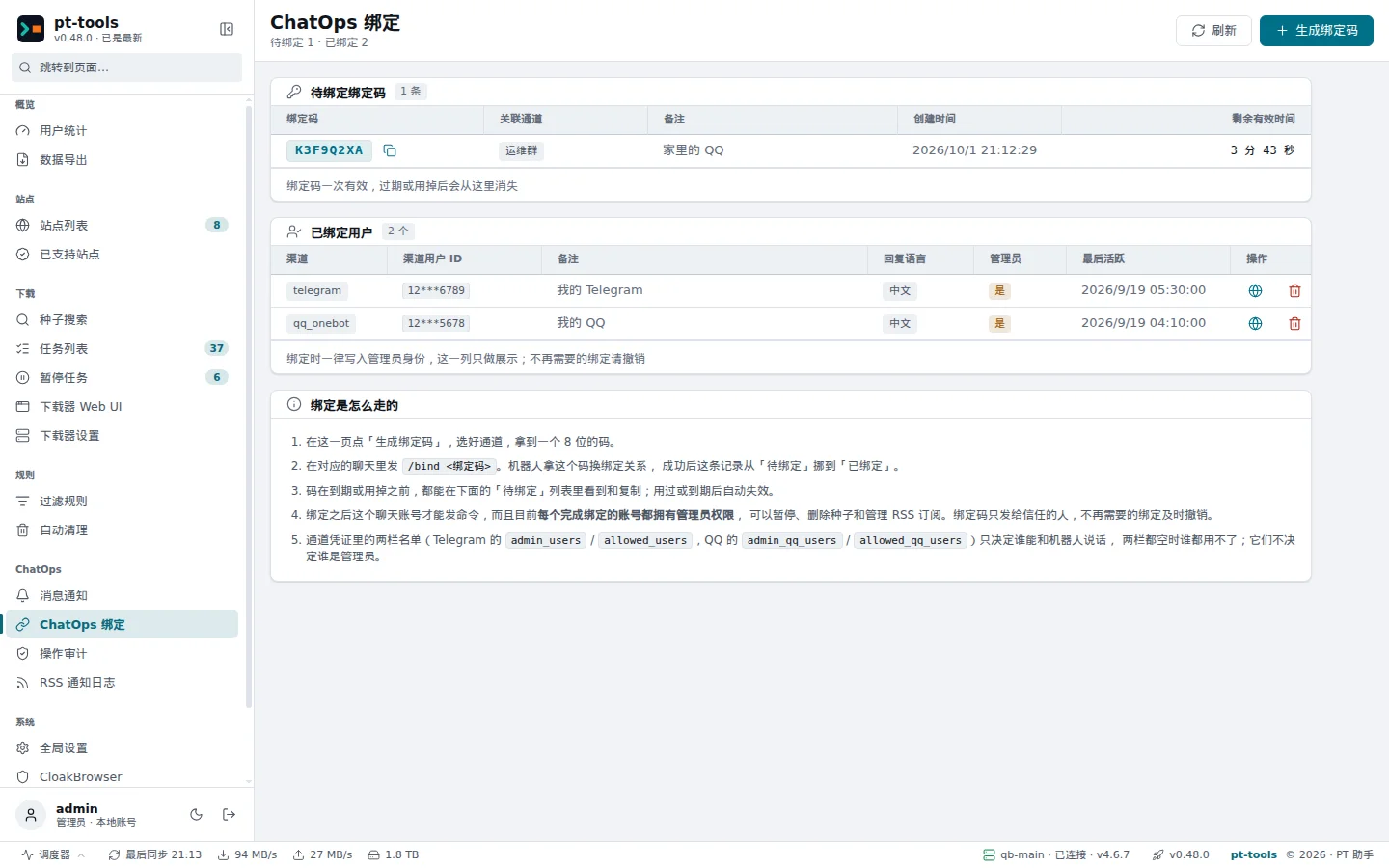
After linking, the account appears in the Linked users list with the channel type, the user ID (partly hidden) and the admin flag.
Trying commands
Send /help; the bot should reply with the full list of commands. Then send /status to check a read-only command.
6. Setting up a proxy
The Telegram Bot API lives at api.telegram.org, which cannot be reached directly from mainland China. There are two ways to use a proxy:
Option 1: an environment variable (for everything)
Set this in the environment pt-tools starts in:
# For an HTTP proxy (the HTTP mode of tools such as Clash or V2Ray)
export HTTPS_PROXY=http://127.0.0.1:1080
Or in Docker Compose:
environment:
  HTTPS_PROXY: "http://127.0.0.1:1080"
This affects every HTTPS request pt-tools makes (site access, update checks and so on), not only Telegram.
Option 2: the channel's proxy_url (recommended)
Enter the proxy URL (proxy_url) under Credentials and connection on the Telegram channel's details page. Only this channel uses the proxy; other channels and site requests are not affected.
Supported formats:
| Proxy type | Example |
|---|---|
| HTTP proxy | http://127.0.0.1:1080 |
| HTTPS proxy | https://proxy.example.com:8443 |
| SOCKS5 proxy | socks5://127.0.0.1:7890 |
| HTTP proxy with credentials | http://user:pass@proxy.example.com:3128 |
The usual addresses of common local proxy tools:
| Tool | Default HTTP port | Default SOCKS5 port |
|---|---|---|
| Clash | 7890 | 7891 (or 7890 for HTTP as well) |
| V2Ray / Xray | 1087 (HTTP) | 1080 (SOCKS5) |
| Shadowsocks | 1087 (if its local HTTP proxy is enabled) | 1080 |
If you are not sure of the port, look for the "allow LAN connections" section in the proxy tool's interface.
7. Questions
Q: getUpdates returns an empty result ("result": [])
Cause: the bot has not received any message, so getUpdates has nothing to return.
Fix: send the bot a message in Telegram (anything will do), then reload getUpdates.
Q: The channel's status shows Problem (异常), or the test message is not delivered
Cause 1: api.telegram.org cannot be reached; set up a proxy (see section 6).
Check: on the machine pt-tools runs on, run:
curl -x http://127.0.0.1:1080 https://api.telegram.org/bot<TOKEN>/getMeIf the proxy works, this returns JSON describing the bot.
Cause 2: the bot token is wrong, with an extra space or a missing character. The token has the form digits:letters and digits, with no spaces around the colon.
Q: Sending times out, or the log shows send_message timeout
Cause: pt-tools cannot reach Telegram's API servers, or the proxy is set up wrongly.
Fix:
- Check that
proxy_urlis right - On the machine pt-tools runs on, check by hand that the proxy reaches
api.telegram.org - If you use an environment variable, it must be set before pt-tools starts
Q: Decrypting the bot token fails, and the log shows "illegal base64 at input byte 0"
Cause: test builds from before the ChatOps release (v0.31.0) decrypted the token twice; the releases are fixed.
Fix: upgrade to the latest version, then delete the Telegram channel, create it again and enter the token again (the encrypted data stored by the old build is damaged and has to be recreated).
Q: Can two pt-tools instances share one bot?
No. Telegram's long polling requires that only one process polls a bot at a time. If two machines use the same bot token, they take the polling away from each other, messages are delivered to one or the other at random, and most commands get no reply.
With several machines, give each its own bot (ask BotFather for a separate bot token for each).
Q: I want to use the bot in a group rather than a private chat
- Add the bot to the group
- Send a message in the group (or a command mentioning
@bot, depending on the bot's privacy mode) - Open getUpdates and find
chat.id(a group's chat_id is a negative number, such as-1001234567890) - Set
default_chat_idto the group's chat_id, and add the user_ids of the members who should be able to talk to the bot toallowed_users
Note: with privacy mode on, the bot sees only the commands addressed to it in a group (messages starting with / or mentioning @botname); it sees every message only with privacy mode off. For pt-tools, keeping privacy mode on (the default) is recommended.