Your accounts
Where it isIn one file on this computer
Encrypted with a key derived from your master password. Lockra never sends it anywhere.
An encrypted authenticator and password manager for Windows, macOS, Linux and Android, with a browser extension that fills your logins and their codes. Keep the same accounts on every device with end-to-end encrypted sync, move them from Google Authenticator or Microsoft Authenticator, and keep encrypted backups where you choose.
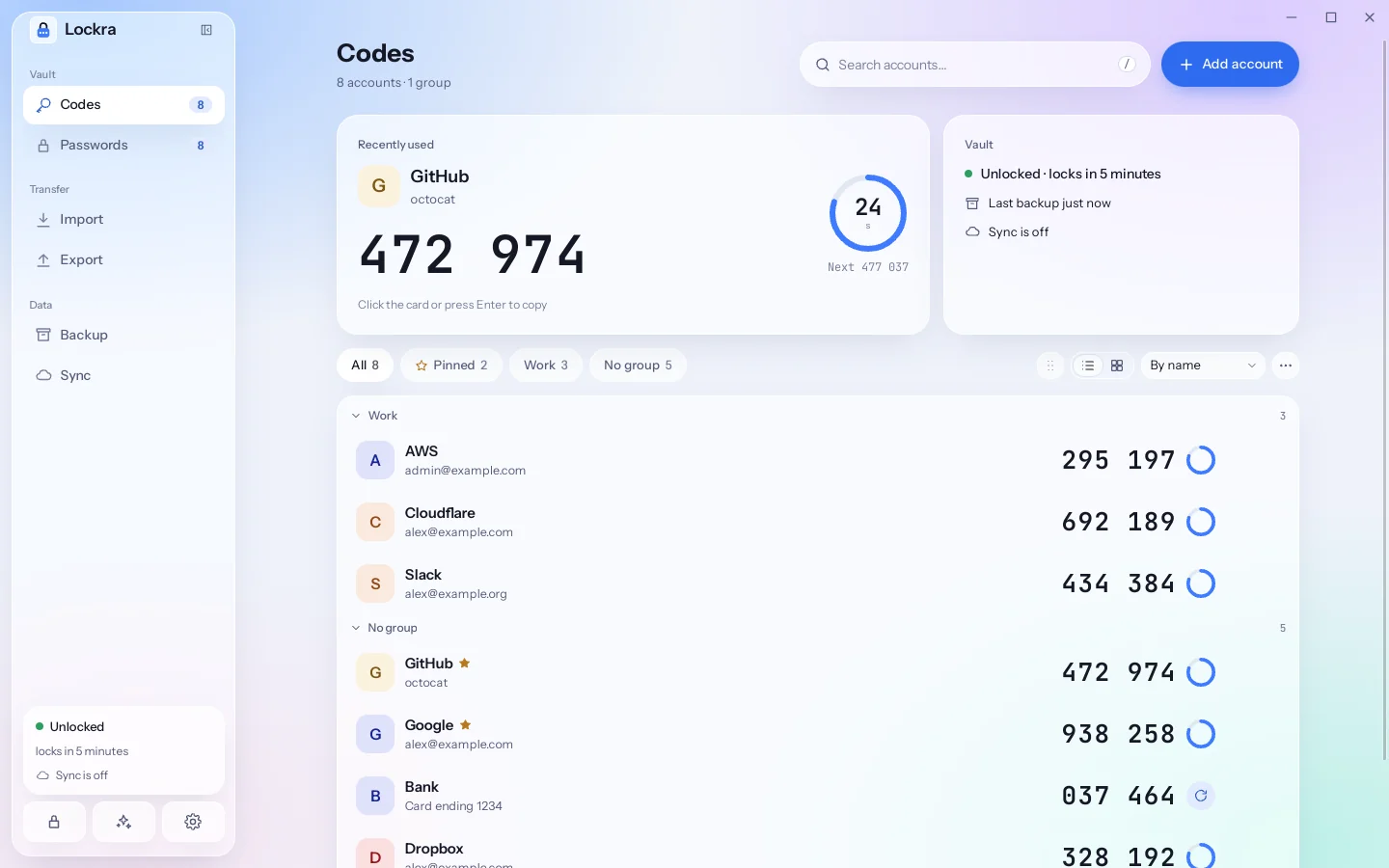
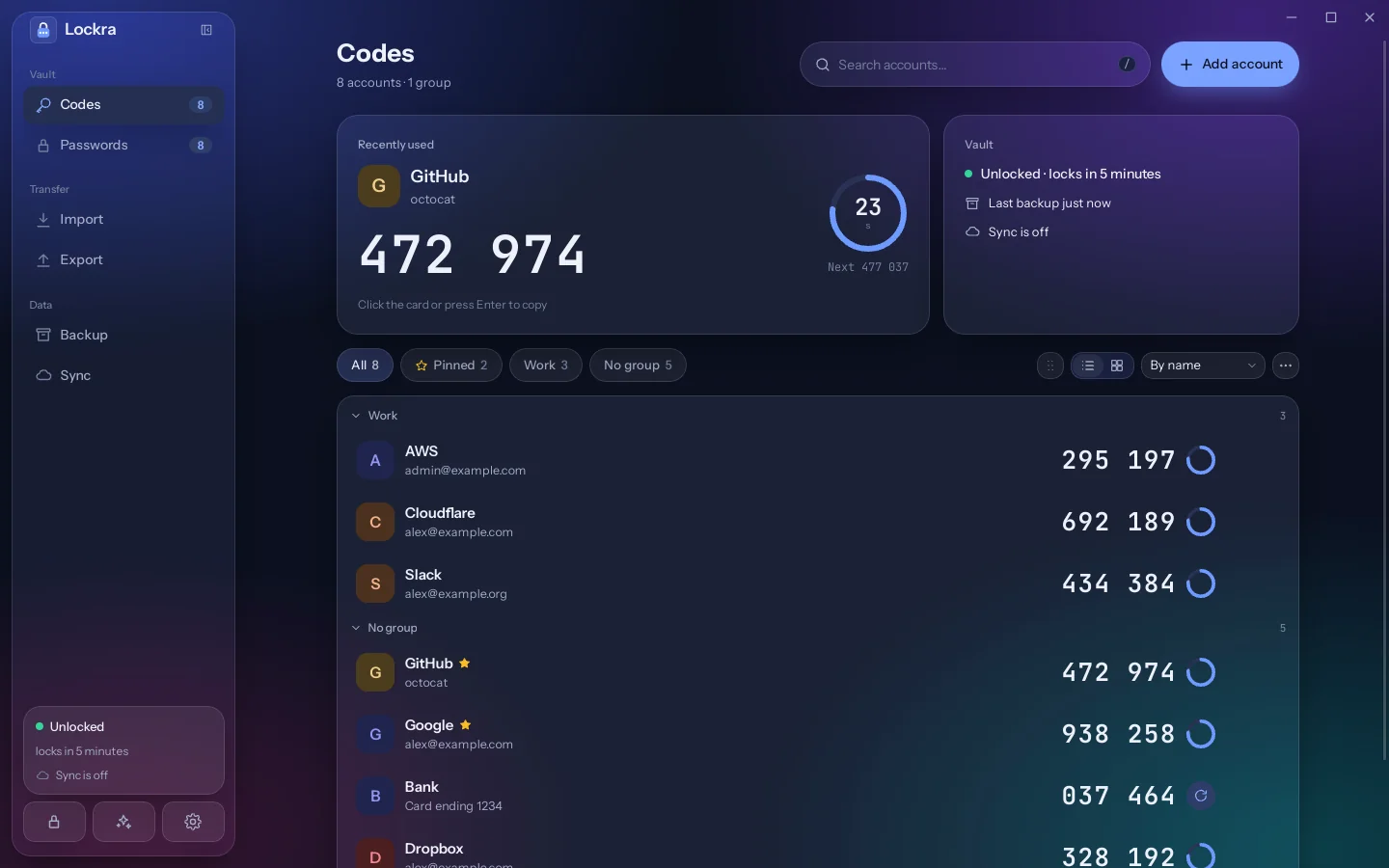
Signing up on a site with a password Lockra makes to its rules, turning on its two-step verification, and signing in page by page with the login and the code filled in; then the command palette (Ctrl K), the generator (Ctrl G) and the themes. Recorded with the real app and its browser extension, on a made-up site.
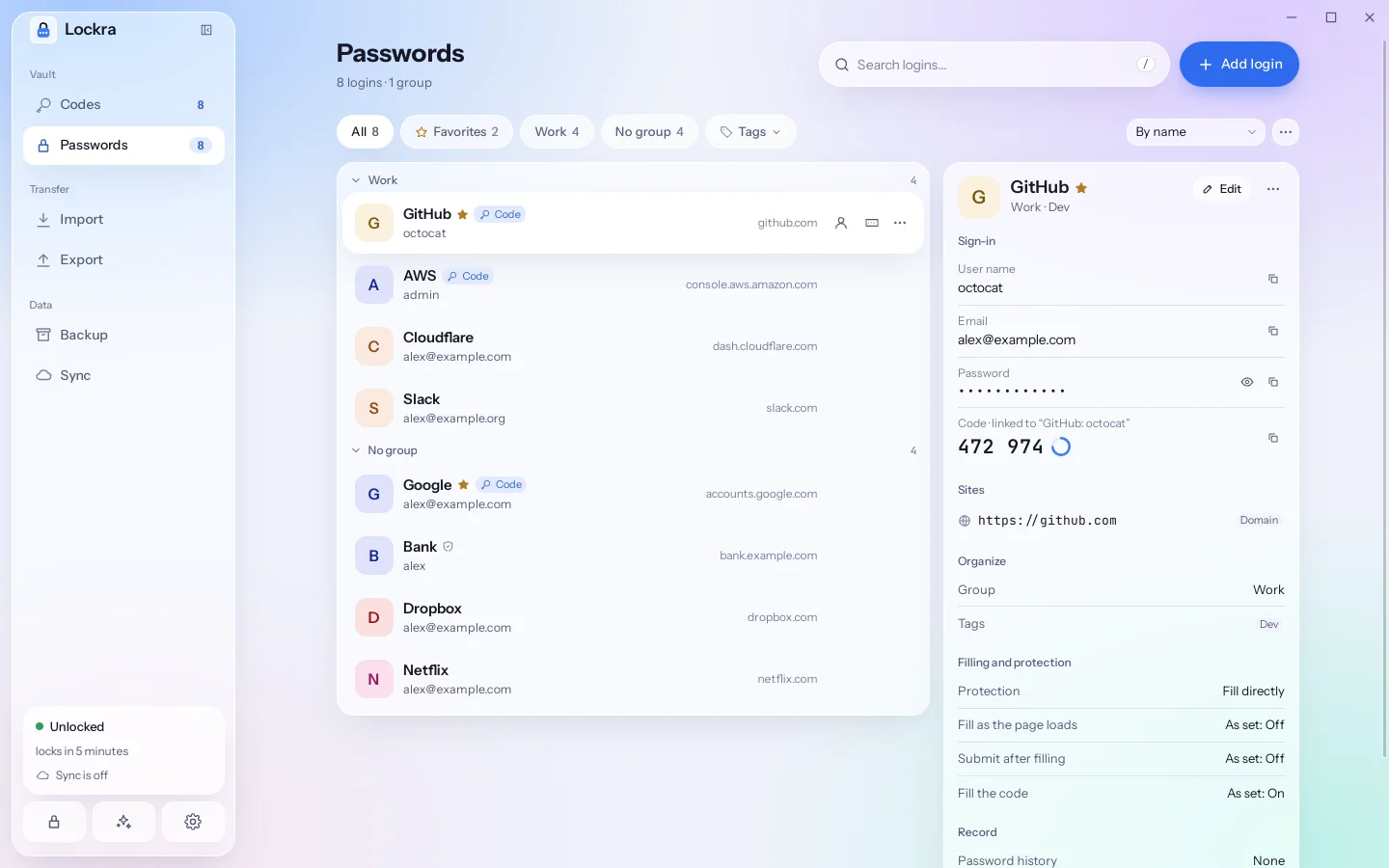
From version 0.10.0, Lockra keeps your logins beside the codes, in the same vault and the same backup, on the computer and on the phone. The browser extension for Chrome, Edge and Firefox fills a login and then its code, page by page when a sign-in asks for them one at a time, offers to save and update passwords, and makes a password to the site's rules on a sign-up form. It keeps no passwords itself: it asks Lockra on the same computer, over a connection encrypted between the two, and Lockra decides every fill. Logins come in from browsers and password managers, and go out to KeePass or a CSV file.
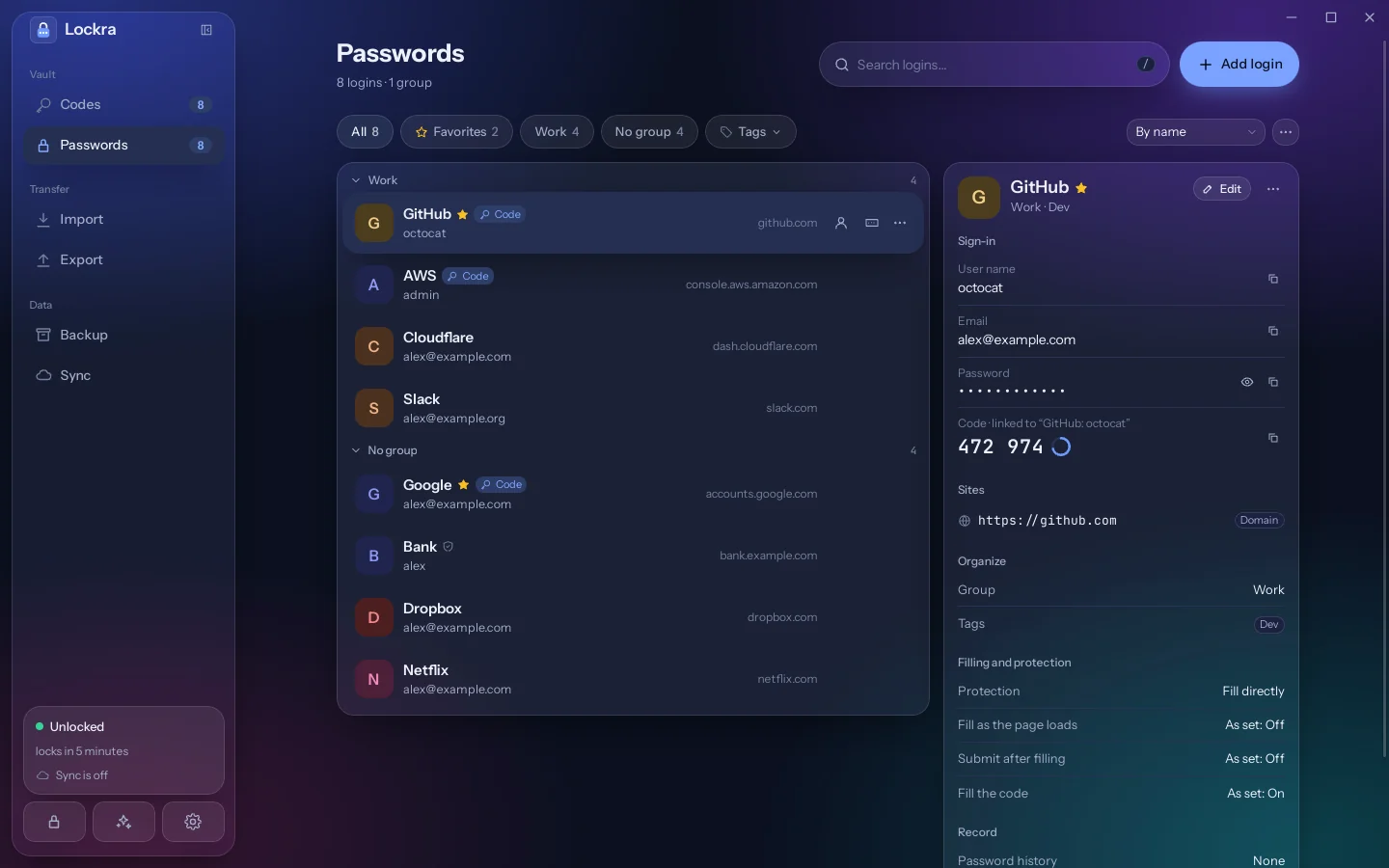
Passwords · The browser extension · Importing and exporting logins
Lockra runs on Windows, macOS, Linux and Android, and sync keeps the same accounts, logins, groups and pinned accounts on all of them. Each device encrypts what it shares before it leaves; a relay you run, an S3-compatible bucket, a WebDAV folder or, between computers, a cloud drive folder keeps only that ciphertext. A phone joins by scanning the computer's QR code, and there is no Lockra account to create.
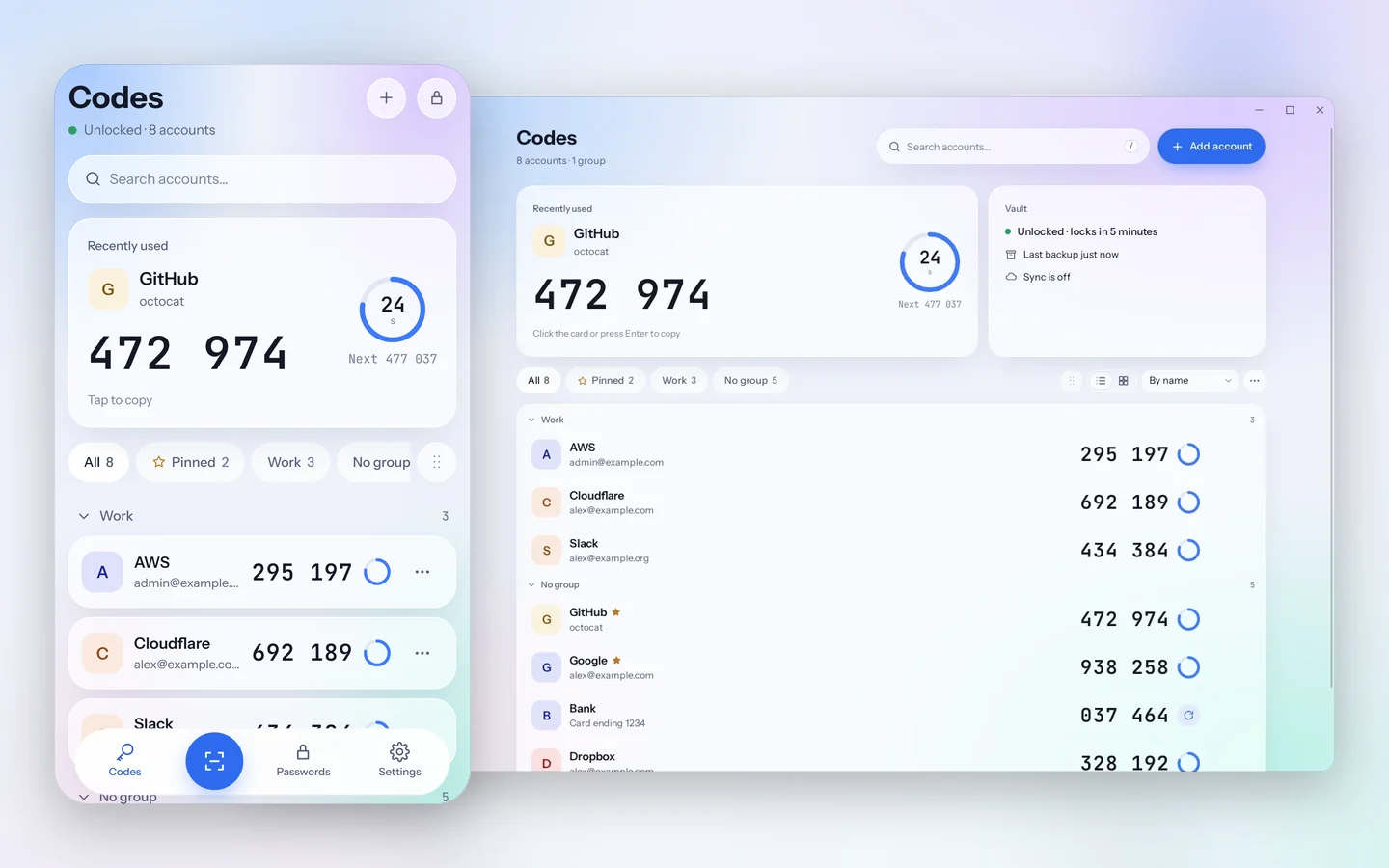
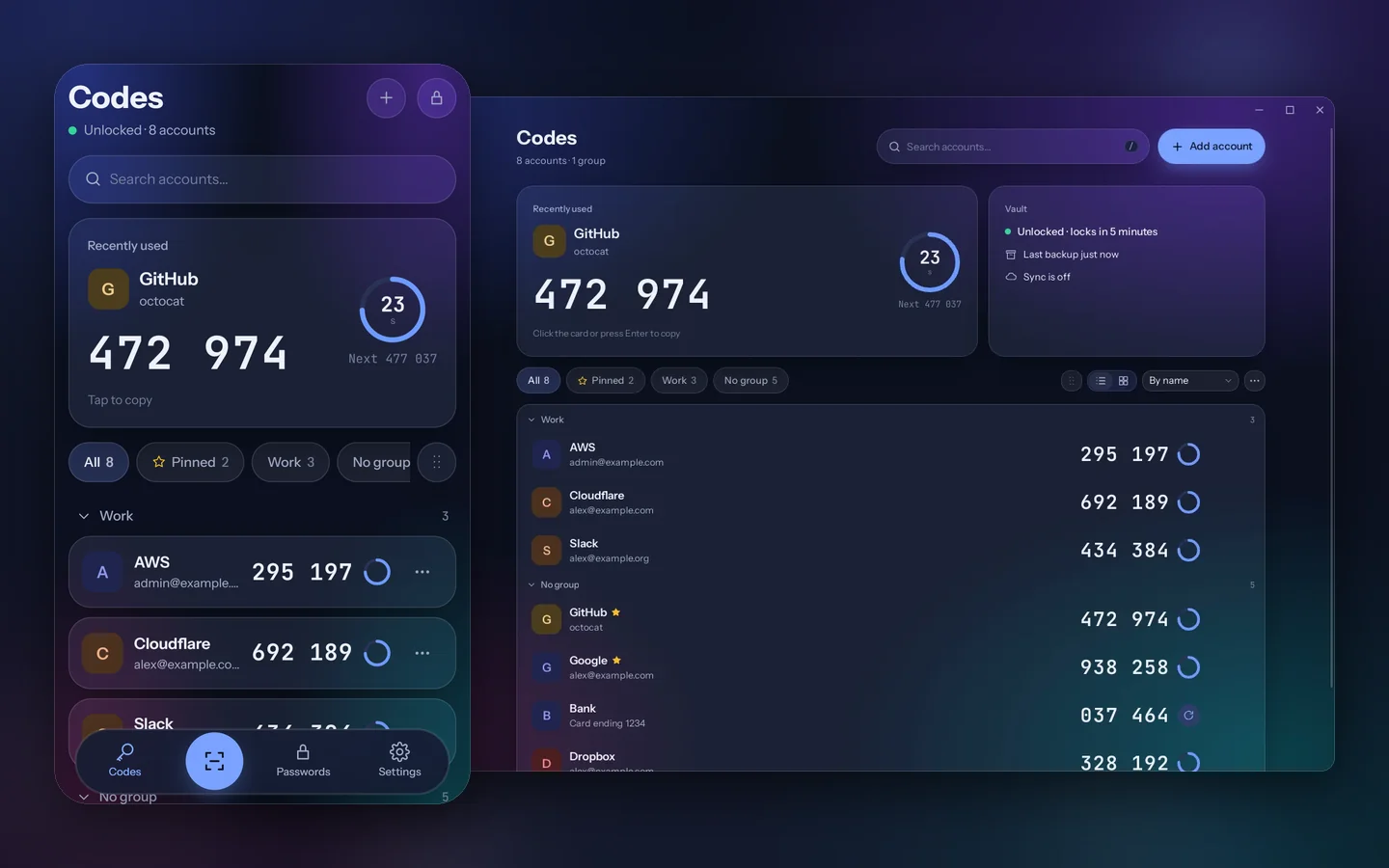
Sync between devices · Install on Android
Everything in the current release, with a link to the page that explains it.
The same app on computers and phones, with installers for Windows, macOS and Linux on x64 and ARM64 and an APK for Android 8 or later.
End-to-end encrypted, on an S3-compatible bucket, a WebDAV folder or, between computers, a cloud drive folder of your own, or through a Lockra relay. Whatever keeps the space sees only encrypted files.
Run your own relay to keep the encrypted files without giving the server the keys that open them.
Show an invitation on a device of the space and scan it with the phone, or paste its pairing link. A recovery key brings the space back if every device is lost.
Click an account, or select it with the arrow keys and press Enter. The clipboard is cleared 30 seconds later if it still holds the code.
In a code's last five seconds the next one appears beside it, so you never type a code that is about to change.
Type to find an account, file accounts into groups, and pin the ones you use most to the top. Ctrl K finds any account and copies its code.
Fold groups one by one or all at once, give each account a colour or its own avatar text, and pin or edit from the row or a right-click.
Time-based (TOTP) and counter-based (HOTP) codes, SHA1, SHA256 or SHA512, 6 to 8 digits, any period.
User names, passwords, sites, notes and fields of your own, with the account whose code goes with each, on the computer and on the phone.
Fill directly, ask for the master password or the system check first, or keep a login away from the browser extension.
Random passwords and passphrases, held to the password rules of known sites, with a history on the device.
Import from Chrome, Edge, Firefox, Safari, Bitwarden, 1Password, LastPass and KeePass; export to KeePass or a CSV file.
Fills logins and their codes on Windows, macOS and Linux, page after page when a sign-in takes several, and offers to save new passwords. Chrome, Edge and Brave load it from Lockra's release; the Firefox version waits for its store listing.
A key combination of your own brings up Lockra's command palette over any app, to copy a user name, a password or a code.
Photograph or screenshot its export codes and drop the pictures on the window. Lockra says which codes of a batch are still missing.
The app has no export, but Lockra reads its database from a rooted Android phone. Work and school accounts cannot be moved.
Paste otpauth links, read them from the clipboard, or choose a list or a picture of any authenticator's QR code.
Migration codes for Google Authenticator, one code per account for Microsoft Authenticator, with the current codes beside them to check the phone.
Save the whole vault to a .lockrabackup file under the master password or a separate backup password.
A few seconds after every change, an encrypted backup goes to a folder you choose. Lockra keeps the newest few.
Merge a backup's accounts one by one, or replace them all. Before replacing, Lockra keeps a copy of the current vault.
The vault is encrypted with a key derived from your master password. Repeated wrong passwords slow down further attempts.
Optionally keep a key in the system keychain so that unlocking needs no password on this computer.
Ask for your fingerprint, or Windows Hello, before the remembered key unlocks.
After five idle minutes by default, and at once with Ctrl L.
Showing a secret or an export code asks for the master password again (or, on the phone, the fingerprint) and hides it after two minutes. On Windows and macOS, screenshots show the window black meanwhile.
The title bar tells you when a new version is out; with automatic updates on, Lockra downloads it at start and every 4 hours while it runs, and installs only a package that carries its signature.
Start Lockra and choose a master password. It encrypts everything and cannot be recovered.
In Google Authenticator, open Transfer accounts and Export accounts, and take photos of the codes with another device.
Drop the pictures on Lockra's window. A preview lists every account; confirm it and they are saved.
CtrlK
Find an account and press Enter, or click it in the list. The code is on the clipboard.
Google Authenticator exports its accounts as QR codes that Lockra reads from photos or screenshots, several at once. Microsoft Authenticator has no export; on a rooted Android phone, Lockra reads its database instead. Any other authenticator can hand over otpauth links or QR codes.
Moving the other way, Lockra shows migration codes for Google Authenticator and one code per account for Microsoft Authenticator, with each account's current code beside them so you can check the phone. Logins come from browsers and password managers through the same preview, and go out to a KeePass database or a CSV file.
Google Authenticator · Microsoft Authenticator · Other apps · Logins
| App | Into Lockra | Back to the app |
|---|---|---|
| Google Authenticator30-second or counter-based, 6 or 8 digits | Photos or screenshots of its export codes | Migration codes, up to 10 accounts each |
| Microsoft AuthenticatorSHA1, 6 digits, 30 seconds | Its database from a rooted Android phone | One standard code per account |
| Other authenticators | otpauth links, lists and QR images | A plain list of otpauth links |
| Lockra | A backup file and its password | A backup file |
| Browsers and password managers | Their password exports, and KeePass databases | A KeePass database or a CSV file |
Before anything is saved, the preview marks each account as new, already in the vault, sharing a name with a different account, or unsupported, with the reason.
Turn on automatic backups once and choose a folder. A few seconds after each change Lockra writes an encrypted copy there and keeps only the newest few. A folder of OneDrive, Google Drive or iCloud carries the copies to your other devices without Lockra going online, and sync keeps the accounts themselves the same on every device, through a Lockra relay or storage of your own.
Restoring merges a backup into your accounts through the same preview as an import, or replaces them after saving a copy of the vault you had.
The vault is one encrypted file. Without the master password it is unreadable, and changing a single byte of it is detected. Lockra locks itself when idle, clears the codes and passwords it copied, and shows an account's secret, or the password of a login set to Verify first, only after you enter the master password again (or, on the phone, verify your fingerprint).
Lockra is the same app on Windows, macOS and Linux, and on Android phones; an app for iPhone and iPad is planned. The platform notes list what differs between them.
| Platform | Packages | Remember on this device | Blocks screenshots of secrets |
|---|---|---|---|
| Windows 10 and 11Available | Installer or MSI for x64, installer for ARM64 | Credential Manager | Yes |
| macOS 11 or laterAvailable | A dmg for Apple silicon and one for Intel | Keychain | Yes |
| LinuxAvailable | .deb, .rpm or AppImage, x64 and ARM64 | Secret Service (GNOME Keyring, KWallet) | No |
| Android 8 or laterAvailable | An APK for ARM64 | With the fingerprint only | Always |
| iPhone and iPadPlanned | — | — | — |
The packages are not code-signed yet, so Windows and macOS ask before the first start.
Nothing, unless you move it yourself or turn on sync.
Where it isIn one file on this computer
Encrypted with a key derived from your master password. Lockra never sends it anywhere.
Where it isWhere you save them
Encrypted the same way. Automatic backups go only to the folder you chose; if that folder syncs, the encrypted file syncs with it.
Where it isA relay or your own storage, if you turn it on
Each device writes encrypted files to the Lockra relay, bucket or WebDAV folder you set up. None of them can read an account, a secret or a device name.
Where it isUpdates and your sync
Lockra asks GitHub for the newest version when you check, or at start and every 4 hours while it runs if you turn on automatic updates; nothing from your accounts goes with it. There is no Lockra account or telemetry, and fonts and images ship with the app.
Where it isLockra on this computer only
It asks Lockra on the same computer, over a connection encrypted between the two, keeps no passwords and sends nothing over the network.
Packages for every platform, with checksums and build attestations, are on the releases page. The install guide covers each platform, including the first start of an unsigned app.
Lockra keeps your codes and passwords on your devices.