
Codes
This page explains the codes page: reading and copying codes, finding an account, arranging the list, and choosing how the page looks.
The page
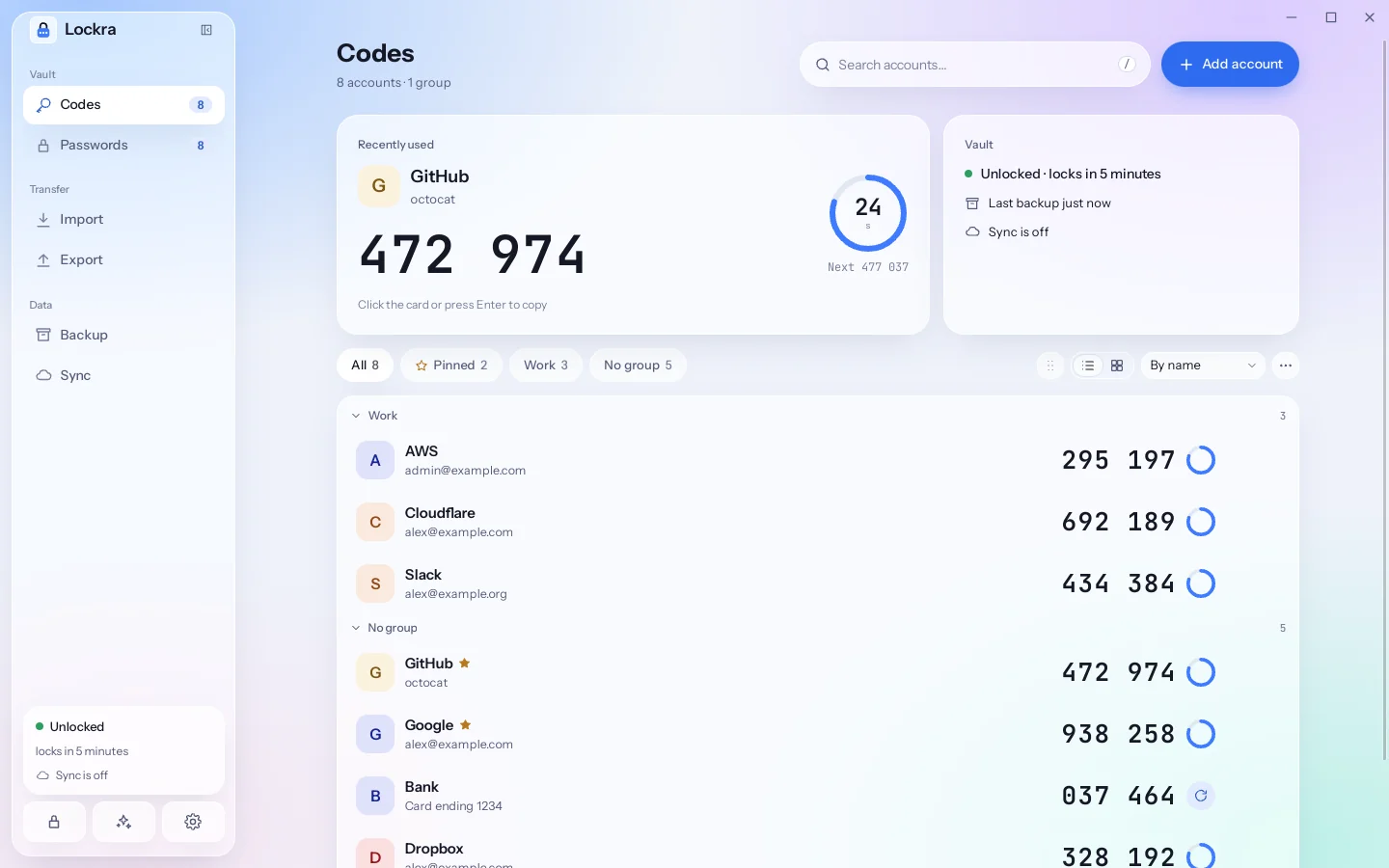
Available Available from version 0.8.8.The page starts with its title and a line of facts (how many accounts and groups, and with sync on, how it stands), with the search field and Add account on the right.
Two cards follow:
- Recently used: the account whose code you copied last, its code in large type, the seconds left in a ring and the next code under it. Click the card or press Enter to copy.
- Vault: whether it is unlocked and when it locks by itself, the last backup, the sync, and the devices of the sync space.
While you search, select or reorder, the two cards step aside.
Under them come the filters and the list's tools. The filters are All, Pinned, each group and No group, each with its number of accounts. On the right: Reorder (the handle), the list or cards switch, the sort menu and a ⋯ menu with Select, Show groups, Collapse all and Expand all.
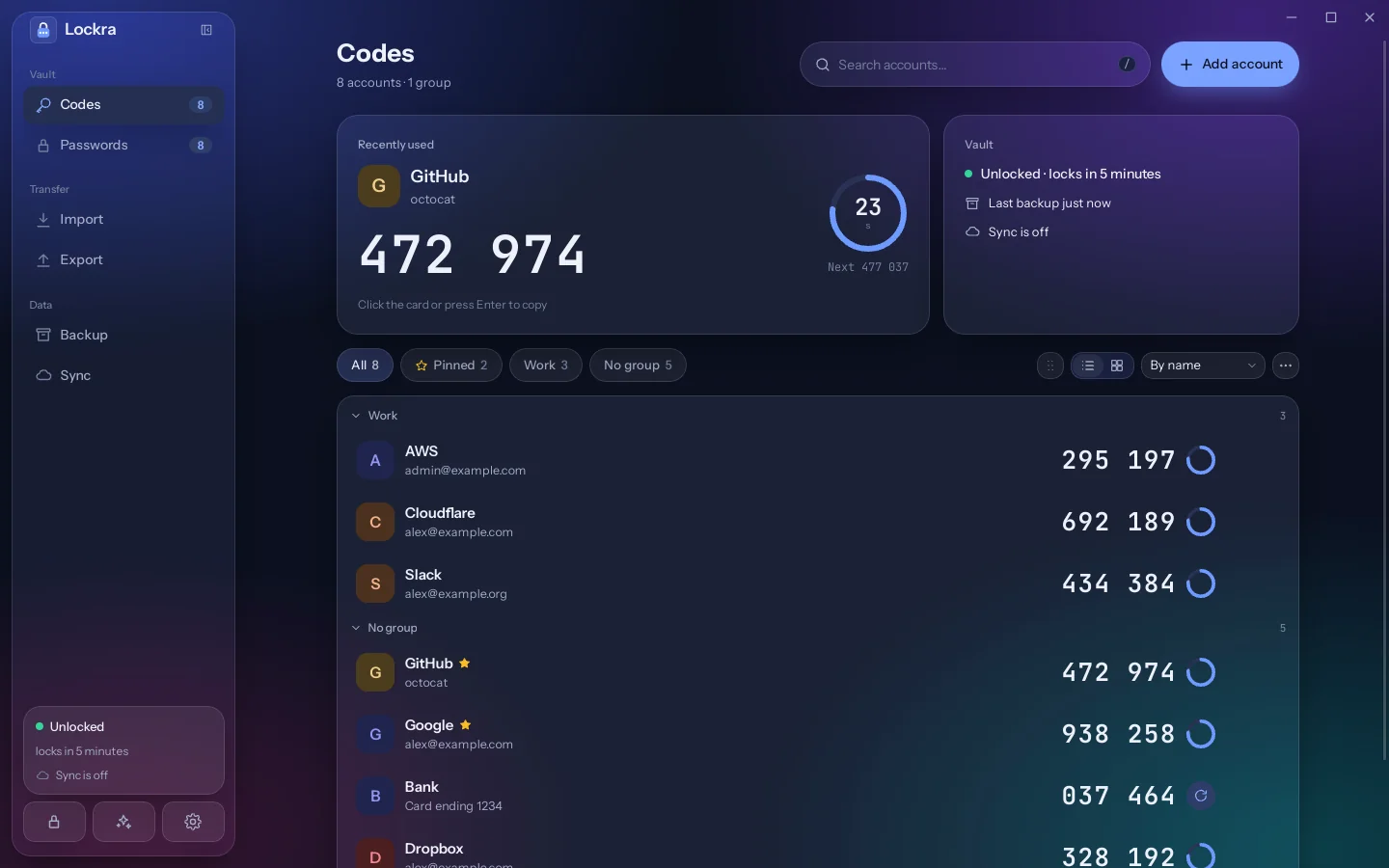
At the foot of the sidebar, a card says whether the vault is unlocked, when it locks by itself and how the sync stands, over three buttons: Lock, the theme and Settings. The theme button moves to the next theme at each click; Settings › Appearance has them all. Sync in the sidebar opens Settings › Sync. Every theme has the same layout: a theme changes only colours and materials.
On the phone, the page starts with a large title and "Unlocked · N accounts", with round Add account and Lock buttons beside it; then the search field, the Recently used card, the filters, which scroll sideways (with Reorder after them), and the accounts, each in a card of its own. The bar at the bottom of the screen has Codes, Scan, Passwords and Settings: Scan opens the camera on a QR code at once, and Passwords opens your logins (On the phone).
Reading a code
Each row shows the account's initial, its service and account name, the current code and a ring. The ring empties as the code's period runs out; most codes last 30 seconds. In the last five seconds the code turns amber and the next code appears under it, so you can wait for it instead of typing one that is about to change.
Counter-based (HOTP) accounts show a Next code button instead of a ring: their code changes only when you ask for the next one.
Copying a code
Click a row, or select it with the arrow keys and press Enter. A message at the bottom names the account whose code was copied and says when the clipboard will be cleared: after 30 seconds by default, and only if it still holds the code, so anything you copied afterwards is left alone. The time can be changed, or clearing turned off, in Settings › Security.
On Windows the copied code is kept out of the clipboard history and cloud clipboard; on Linux and macOS it is marked to stay out of clipboard history where the clipboard manager supports it.
Finding an account
Type in the search field at the top of the page, or press / or Ctrl F to go to it. The list keeps the accounts whose service, account or group contains the text. Enter copies the first match, the down arrow moves into the list, and Esc clears the search.
Ctrl K opens the command palette from anywhere in the app. Type part of a name and press Enter to copy that account's code.
Groups and pinned accounts
Give accounts a group, such as "Work", in Edit… (the ⋯ menu of a row). The filters above the list show only the pinned accounts, one group, or the accounts in none (No group); All shows every account again. The star of a row, or Pin to top in its ⋯ menu, keeps an account first, and a star follows its name.
Folding groups
Available Available from version 0.5.0.When accounts have groups, All shows a section for each group, by name, then No group for the others; any other filter lists its accounts without sections. Click a section's heading to fold or unfold it; Collapse all and Expand all, in the ⋯ menu at the top right of the list, do it for every section at once. A search shows what it finds in folded sections too. Which sections are folded is kept in the vault, on this device only. Show groups, in the same menu, turns the sections off and shows a single list.
Colours and avatar text
Available Available from version 0.5.0.Each account's avatar has a colour: Automatic picks one from the service's name, the same on every device, so different services look different. In Edit…, under Appearance, choose another Colour, or up to two characters for the Avatar text: letters, a Chinese character or an emoji, shown instead of the initial. Colours and avatar text sync to your other devices and stay in backups.
Buttons and the right-click menu
Available Available from version 0.5.0.Beside each row's ⋯ button, a star pins the account to the top (or unpins it). With a mouse, both show while the pointer is on the row or the keyboard focus is in it; on the phone, ⋯ is always there. Edit… is in the ⋯ menu. Right-click a row, or press the context-menu key or Shift F10 on a selected row, to open the same menu as ⋯ where you are.
Selecting several accounts
Available Available from version 0.6.0.Choose Select in the ⋯ menu at the top right of the list, or in an account's menu, to tick accounts: click a row or press Space on it, tick a section's box for all of its accounts, or click Select all for every account the search and the filters show. Move to group… then puts the ticked accounts in one group in a single step: type a group or pick one, or leave it empty to take them out of their groups. Done, or Esc, leaves without changing anything.
Choosing a group
Available Available from version 0.8.6.The Group field of Edit…, of adding an account by hand and of Move to group… lists the groups in use under it: typing filters them, a new name offers New group “name”, and No group takes the account out of its group. The up and down arrow keys move through the list, Enter picks, and Esc closes it.
On the phone, tapping Group opens Choose a group from the bottom of the screen: tap a group or No group, or type a name under New group and tap Use. The back gesture closes only that sheet, not the page under it.
Reordering
Available Available from version 0.8.6.Click Reorder (the handle among the list's tools): a handle appears on the right of each group's heading and of each row. Drag a handle up or down, or focus it and press the up and down arrow keys, to change the order of the accounts and of the groups; Done ends it. While you reorder, the search field and the filters are off.
Once the accounts are reordered, the sort menu reads Manual, and accounts added later go to the end. Pinned accounts still come first. No group moves like any group, and the group shown first stays first. The order is kept in the vault, on this device only: it does not sync to your other devices.
On the phone, tap the Reorder button after the filters, then drag the handle on the right of a row up or down.
Group shown first
Available Available from version 0.8.9.Choose Pinned, a group or No group under Settings › General › Group shown first; on the desktop, with that filter chosen, Show “name” first in the ⋯ menu at the top right of the list does the same. That group comes first among the filters and the codes page opens on it; in All, its section heads the list. With Pinned shown first, the pinned accounts gather in a Pinned section at the top instead of in their groups, a section that does not fold. The choice is kept on this device only: it does not sync to your other devices and is not in backups.
With any filter but All, the list shows its accounts without the sections' headings. While you reorder, No group moves like any group; the group shown first stays first.
Cards
Available Available from version 0.8.7.The two buttons beside the sort menu show the accounts as a list or as cards (Code view, also in Settings › Appearance). A card shows the account above its code in large type, and under the code a bar that empties as the code's period runs out, with the seconds left; in the last five seconds the next code appears under the code. Click a card, or select it with the arrow keys and press Enter, to copy its code; the card shows Copied for a moment. Counter-based accounts show Next code instead of the bar. Selecting several accounts and reordering use the list.
On the phone, choose Cards under Code view in Settings: two cards to a row.
The view is kept on this device and applies in every theme. In the list too, the row you copied shows Copied in place of its code for a moment.
Themes
Available Available from version 0.8.7.Settings › Appearance shows eight themes, the light ones above the dark ones. Besides Light, Dark, Warm paper and Graphite, Clear sky places frosted cards over a soft gradient and Ink draws in black on paper; Clear sky · Night and Ink · Night are their dark versions. With Follow system on, each column switches between its light and dark theme with the system. Warm paper and Graphite do not follow the system: choosing one of them, or a theme of the other brightness, turns Follow system off.
Default theme
Available Available from version 0.9.1.A new installation starts on Clear sky with Follow system on, so a dark system shows Clear sky · Night. An installation of an earlier version keeps the theme it shows.
Order
The sort menu orders the list by name, by the most recently added, or by the most recently used. Pinned accounts stay on top in every order.
Hiding codes
Settings › Security › Hide codes replaces the digits with dots until the pointer rests on a row or the keyboard focus reaches it. Useful when you share your screen.
The row menu
The ⋯ button at the end of a row offers:
- Pin to top (or Unpin): keep the account at the top.
- Edit…: change the service, the account name and the group.
- Show secret…: the secret, its otpauth link and QR code, after the master password, or on a phone with fingerprint unlock on, the fingerprint (see Security).
- Delete…: remove the account. Turn off two-factor sign-in at the service first, or move it to another authenticator, or you may lose access to it.