Passwords
This page explains how Lockra keeps your passwords: the Passwords page, adding and editing logins, how each login is protected, the password generator, the phone, and sync.
Available Available from version 0.10.0.Lockra keeps each password in a login: its title, the user name and the email address, the password, the sites it is for, notes and fields of your own and, if you like, the account whose code goes with it. Logins and accounts share one vault, so one master password opens both and one backup holds both. The browser extension fills logins into web pages, and Importing and exporting logins brings them from a browser or another password manager.
The Passwords page
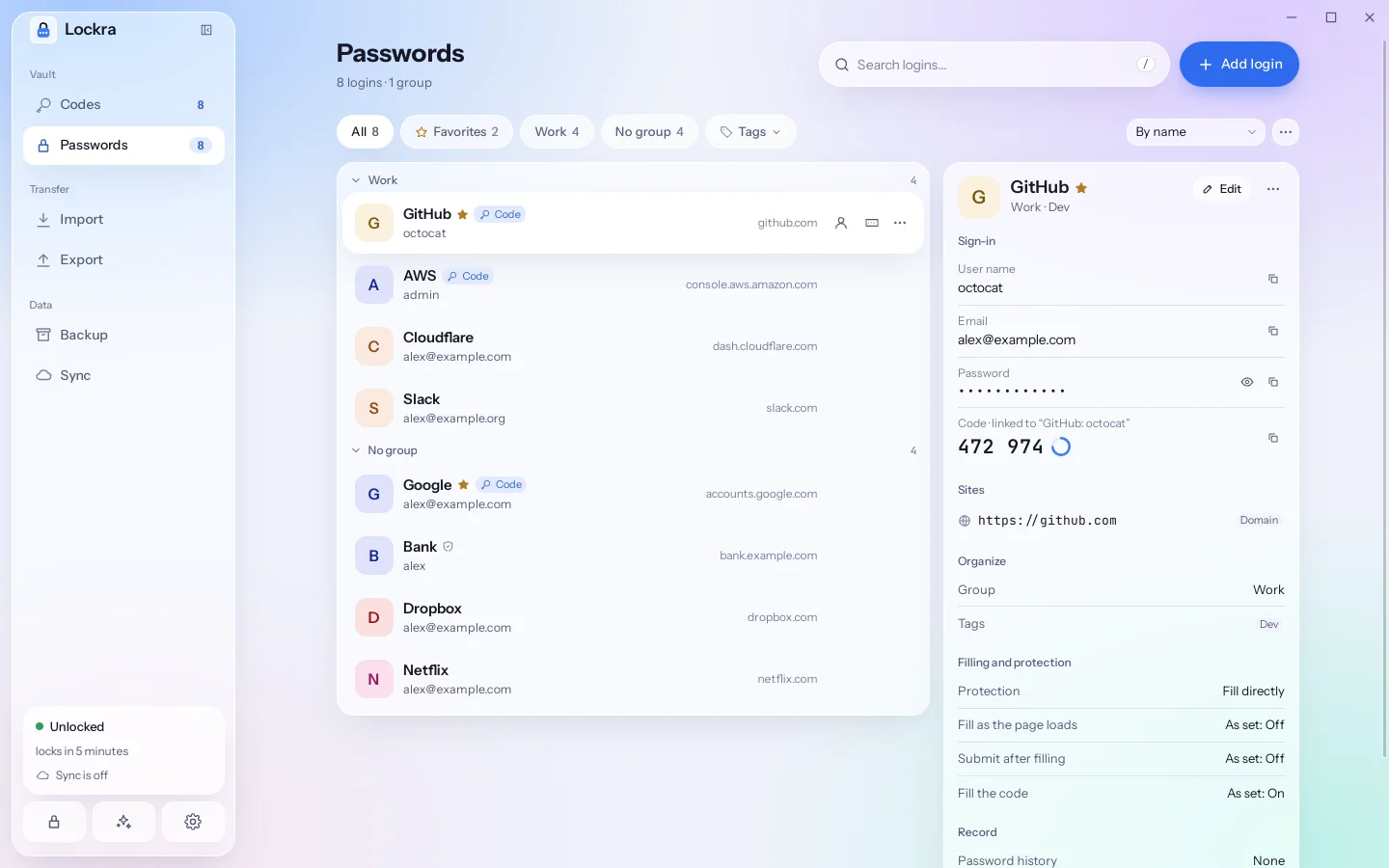
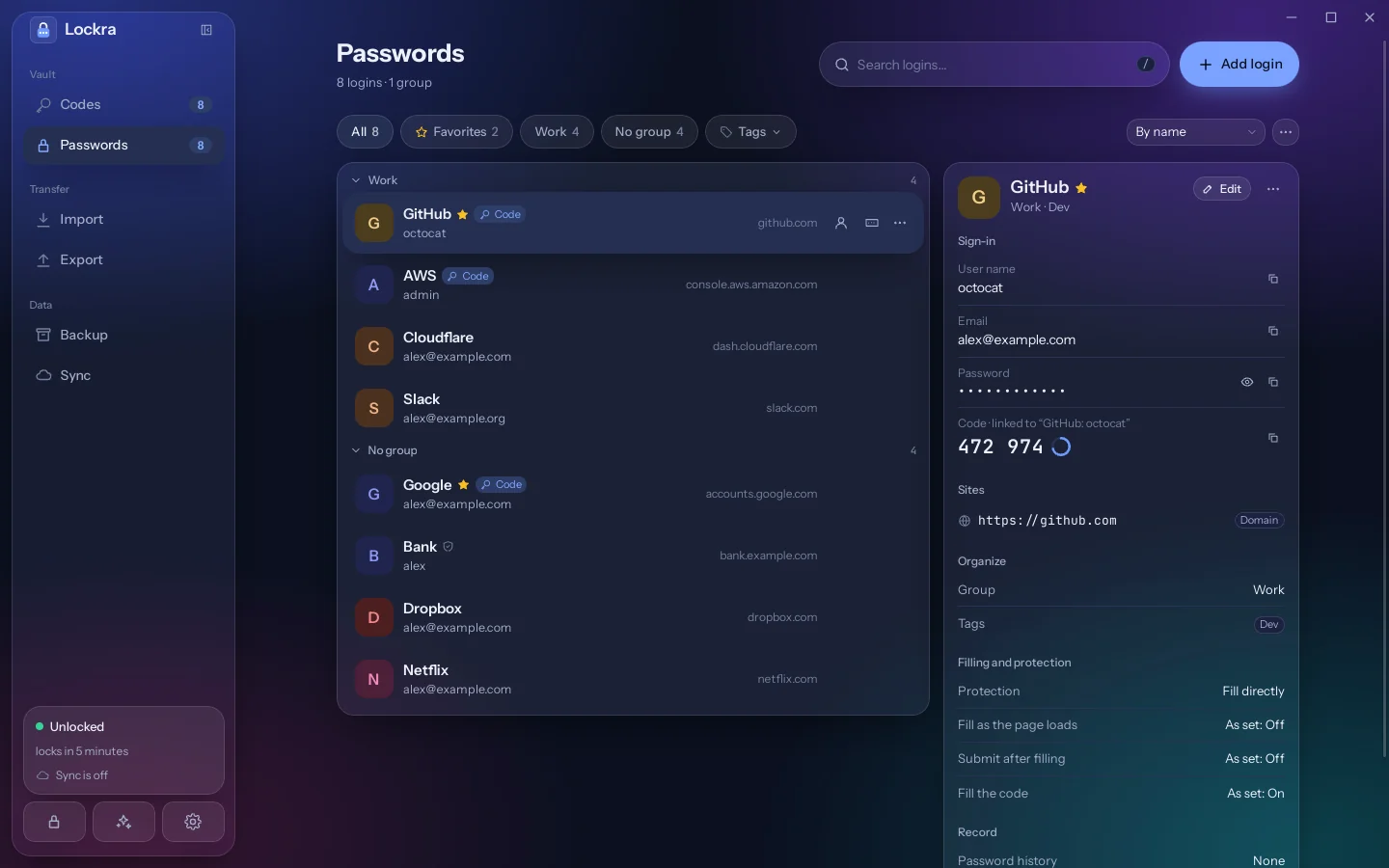
Passwords in the sidebar lists your logins. The header counts them and their groups and, with sync on, says how it stands; beside it are the search field and Add login, which offers New login… (Ctrl N), Generate a password… (Ctrl G) and Import from another app….
The search looks through the titles, user names, email addresses, groups, sites and tags. Under the header, the filters show All, Favorites, each group and No group, each with its number of logins. Tags picks one or more tags, and the list then shows the logins that carry all of them. On the right, the sort menu orders the list By name, Recently used, Recently changed or Recently added; favorite logins come first in every order. In All, the logins of each group sit under the group's heading: click it to fold the group, or use Collapse all and Expand all in the ⋯ menu.
Each row shows the login's title, a star when it is a favorite, a shield when it is set to Verify first, a Code badge when a code is linked to it, its user name and, on the right, its site. With a mouse, pointing at a row shows its buttons: copy the user name, copy the password, and ⋯.
Click a row, or move with the arrow keys, to show the login in the pane on the right; Enter copies its password. The ⋯ button, a right-click or the context-menu key opens the row's menu: Copy user name, Copy password, Copy code, Show password…, Edit…, Favorite, Move to group… and Delete…. Move to group… puts the login in a group of the list or a new one; No group takes it out of its group.
A user name, password or code copied from a login goes to the clipboard as a code copied on the codes page does: marked to stay out of clipboard history, and cleared after the time set in Settings › Security › Clear clipboard (30 seconds by default) if the clipboard still holds it.
The detail pane
The pane beside the list shows the login you selected, in sections:
- Sign-in: the user name, the email address, the password as dots, and the linked account's current code with its countdown ring, each with a button to copy it. The password also has a button to show it.
- Sites: each address and how it matches (Sites and matching).
- Notes: hidden until you choose Show; they hide again after two minutes.
- Custom fields: text fields as they are, hidden ones shown like the notes.
- Organize: the group and the tags.
- Filling and protection: the protection level and the login's three autofill choices (Protection levels).
- Record: how many earlier passwords are kept (Password history), when the login was created and changed, and the app an imported login came from (Source).
Edit opens the login's form; ⋯ offers Show password…, Favorite, Move to group… and Delete…. Show password… shows the password in large type with its length, the kinds of characters in it and its strength, and hides it after two minutes. While a password or a note is shown, Windows and macOS keep the window out of screenshots and screen recordings.
A login written by a newer version of Lockra shows Read-only: it can be shown and copied here, not changed.
The command palette
Ctrl K lists your logins beside your accounts. Type part of a login's name and press Enter to copy its password; Tab moves to its other actions, Copy user name, Copy code and Show password, and Enter runs the one chosen.
Adding and editing a login
Add login › New login…, or Ctrl N on the Passwords page, opens the login's form, and Edit opens it for a login you have. Only the title is required.
- Title, User name and Email: the user name and the email address are kept apart. A sign-in form gets the user name, or the email address when there is none.
- Password: with a strength bar. Generate… opens the generator, and Use this password puts its password in the form.
- Sites: the addresses the login is for, each with how it matches. Add a site adds one more.
- Code: Link a code… picks one of the accounts in your vault, or makes a new one under Make a new one: Scan a QR code… reads the QR code of a site's two-factor setup from a screenshot on the clipboard or from an image, Paste an otpauth link… takes a link, and Type in the key… takes the key the site shows. The new account is linked as soon as it is added; a QR code or an image with several accounts is imported on the codes page instead. After the extension fills the password, the linked account's code goes into the page's code field. Change… and Unlink change it later. Available From version 0.12.0, the login's pane on the right does the same without the form: Link a code… in its Code row, and beside a linked code Change the code and Unlink the code.
- Notes: treated as a secret, so a login being edited shows them only after you choose Show.
- Custom fields: Add a field adds a name and a value, as Text or Hidden. A field with a Page field name is filled into the page's field of that name.
- Organize: the Group, the Tags (type one, then press Enter) and Favorite, which puts the login first in the list.
- Appearance: the colour and the text of its avatar, as for an account (Colours and avatar text).
- Protection and Autofill: below.
When you edit a login, its password field is empty: leave it empty to keep the password, or type a new one. Hidden custom fields work the same way. A password you replace goes into the login's history, which keeps up to 20 earlier values of its password and hidden fields.
Delete…, in the form or in the row's menu, deletes the login. With sync on, it is deleted on your other devices too once they sync.
Sites and matching
A login is offered on the sites it lists. How each address matches is chosen beside it:
| Matching | The login is offered |
|---|---|
| Domain (the default) | on the site and its subdomains: a login for example.com also matches login.example.com |
| Host | on this host and port only |
| Never | nowhere: the address is kept, but never matched |
| Starts with | on addresses that start with this one, character for character |
| Regex | on addresses that match this regular expression |
| Exact | on this address only |
An address typed without https:// or http:// is read as https://. Lockra also knows groups of domains that share their sign-ins, from a list it ships with, and matches them as one domain. When several logins match a page, the extension offers only those that match it most closely: an exact address before a beginning or a regular expression, those before a host, and a host before a domain. Available From version 0.12.0, Match the port in Settings › Browser makes the domain rule compare the port too (Matching the port).
Domain rule match as Host does, on the host and port of the saved address only, so that the hosts of one site keep their own logins. Matching in its site lists has single sites match by Full host or by Domain whatever that setting says, their subdomains with them (Matching the full host).
Protection levels
Each login has its own Protection, chosen in its form:
| Level | The browser extension | Showing and copying in Lockra |
|---|---|---|
| Fill directly | fills it | ask for nothing |
| Verify first | fills it after you verify | ask for the master password, or Touch ID, Windows Hello or the fingerprint where Lockra unlocks with it |
| Not for the extension | never sees it, even in search | ask for nothing |
Fill directly is the default. A password of that level is as easy to show in Lockra as it is to fill: anyone at your unlocked computer can show it. Set Verify first for the logins that matter most; they show a shield in the list.
Autofill, under it in the form, decides three things for this login, each As set (as in Settings › Browser › Autofill), On or Off: Fill as the page loads, Submit after filling and Fill the code. The form shows what As set means at the moment. These choices apply to the browser extension (What the extension may do).
The password generator
Generate a password makes a password for you. Open it with Add login › Generate a password… or Ctrl G anywhere in the app, or with Generate… in a login's form, where Use this password puts it in the form. It makes one of two kinds:
- Random: 4 to 128 characters, 20 by default, from the groups you turn on (
a-z,A-Z,0-9and symbols), with at least one of each. Avoid look-alikes leaves outI l 1 | O 0, and Leave out leaves out any characters you type there. - Passphrase: 3 to 20 words, 6 by default, from the EFF's large list of 7,776 English words, joined by
-,.,_or a space, with Capitalize and Add a number if you want them.
Under the password, a meter shows its strength and about how many bits of randomness it has, and Generate again makes another. Opened from a login's form, the generator follows the password rules Lockra knows for the login's first site and says Made to the password rules of that site; when the options cannot meet them, Ignore the rules makes a password without them. The options you used last become the next default. Opened on its own, its Copy button puts the password on the clipboard, which is cleared like a copied code.
Generated passwords
A password goes into the generator's history when you copy it or save a login with it, and so does every password the browser extension makes on a sign-up form. History in the generator opens the list after the master password, Touch ID or Windows Hello, and hides it after two minutes; Clear the history… empties it. The history keeps the last 100 passwords, for 90 days, on this device only: it is not synced and not in backups.
The Generator page
Available Available from version 0.16.3.The password generator has a page of its own, a part of the Passwords page: Generator, beside Add login at the top of the Passwords page, opens it, and so do Add login › Generate a password…, Ctrl G and the command palette; Back to Passwords at its top goes back. The page shows the generator, making passwords for no site, with Copy beside Generate again. Under it, Generated passwords says how many passwords the history holds, which ones go into it and how long they are kept. Show the history… lists them after the master password, Touch ID or Windows Hello, each with when it was made and the site it was made for, and hides them again after two minutes or as soon as you leave the page; Hide hides them sooner. Clear the history… asks before it empties the history, on this page and in the generator of a login's form. Generate… in a login's form keeps opening the generator over the form, with Use this password and History.
On the phone
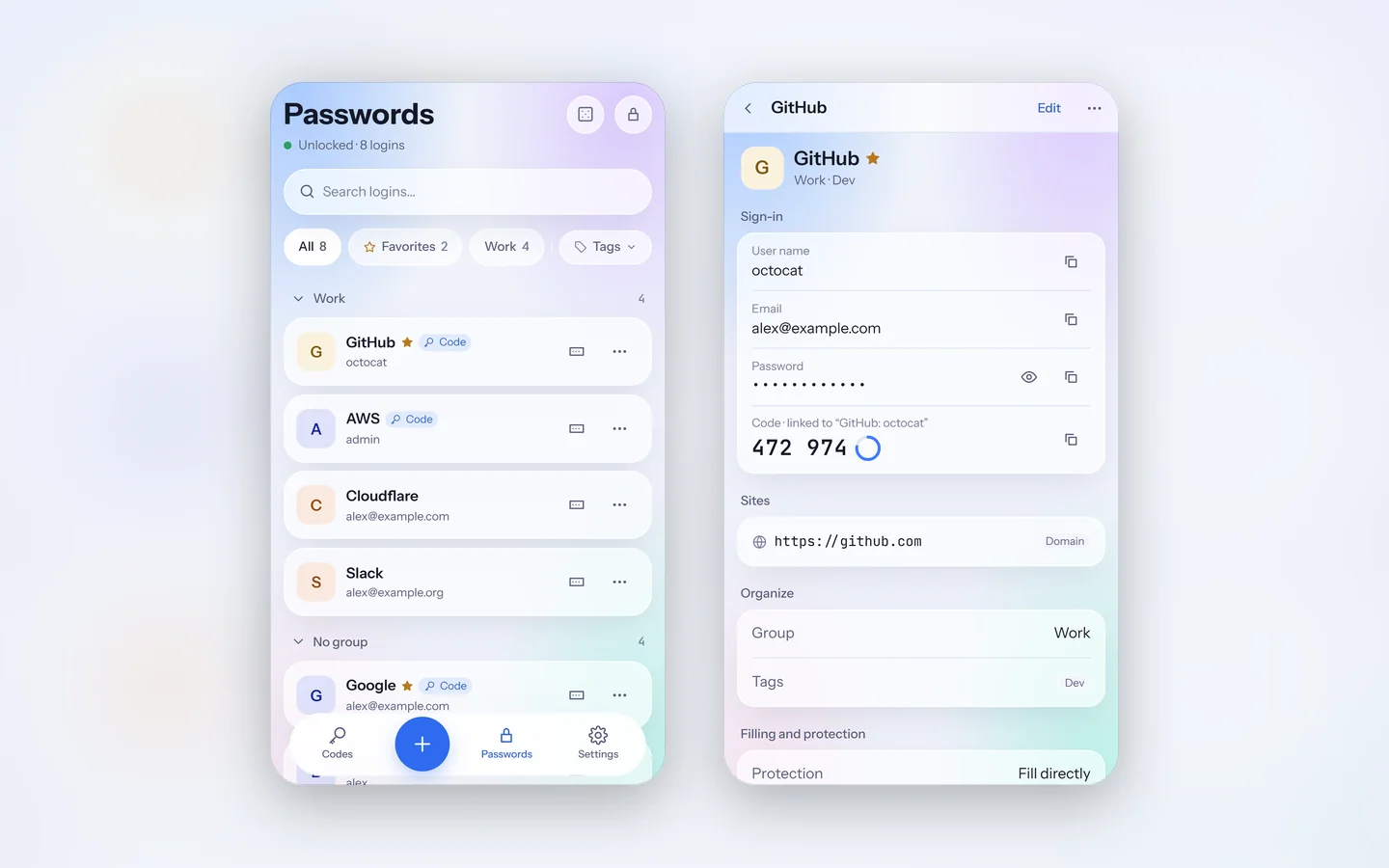
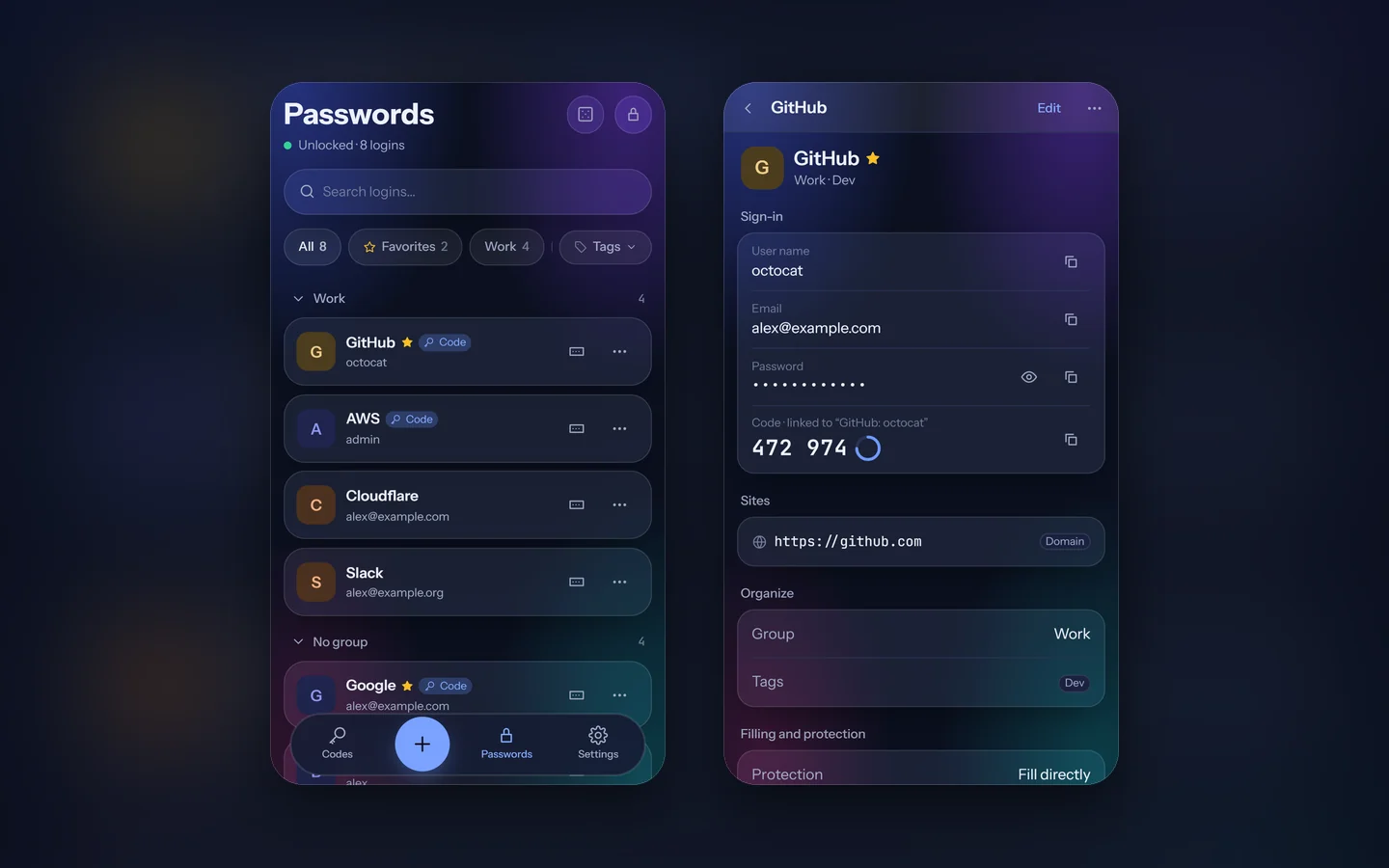
From version 0.10.0, the bar at the bottom of the phone's screen has Codes, the raised button, Passwords and Settings. On the codes page the raised button is Scan; on the Passwords page it is New login.
The Passwords page starts with its title and "Unlocked · N logins", with round buttons for the generator and Lock, then the search field, the filters and Tags, and the logins, each in a card of its own. Tap a login to open it; the button on its card copies the password, and ⋯, or a long press, offers Copy user name, Copy password, Copy code, Show password, Edit and Delete….
A login's page shows what the computer's detail pane shows. Show password opens the password on a page of its own, hidden after two minutes. Edit opens its form, with Save at the top: the fields of the computer's form, without Appearance and Autofill. A login set to Verify first asks for the fingerprint, or the master password, before a secret shows or is copied. Copied passwords are marked sensitive, so the keyboard's clipboard history and the paste preview leave them out. The phone's generator works as the computer's, without the history.
The phone has no browser extension and fills nothing into other apps: copy a password and paste it. A login's autofill choices are set on the computer, and the phone keeps them as they are.
Sync and older versions
Logins sync in the same space as your accounts, end-to-end encrypted, and the site lists of the browser extension sync with them (Logins in sync). A device with Lockra 0.9 or earlier keeps syncing its accounts but does not receive the logins, and does not delete them on the other devices: update it to receive them. Settings › Sync marks such a device No passwords in its list of devices and names it above the list, and shows each other device's Lockra version once it has synced with 0.10 or later. A vault that holds logins no longer opens in Lockra 0.9, and a backup that holds logins does not restore there either (Logins in backups).
Quick search from anywhere
Available Available from version 0.10.0.A key combination of your choice brings up Lockra's command palette over any app, to copy a login's password, user name or code, or an account's code. It is off until you set it in Settings › General › Quick search: click the field and press the keys, with Ctrl, Alt or ⌘ among them, or choose Use Ctrl+Shift+Space (⌘⇧Space on macOS). The tray's menu has Quick search too. Lockra has to be running, in the tray if its window is closed (Running in the background).
While the vault is locked, the window comes up with the unlock screen and no palette. After you copy something from the palette the quick search opened, the window goes back where it was: into the tray, or minimized.
When another app already uses the keys, Settings says so: choose others. On Wayland, an app cannot set a shortcut for the whole desktop, and Settings gives the command lockra-desktop --palette instead: bind it to a key in your desktop's keyboard settings, and it brings up the palette of the running Lockra.