
Google Authenticator
This page explains how to move accounts from Google Authenticator into Lockra, and from Lockra back to Google Authenticator.
Moving accounts into Lockra
Google Authenticator exports accounts as QR codes; Lockra reads them from pictures.
- On the phone, open Google Authenticator, tap ⋮ › Transfer accounts › Export accounts, and choose the accounts.
- Take a picture of each QR code. The Android app blocks screenshots of this screen, so photograph it with another device; on an iPhone, screenshots work.
- On the computer, open Import and drop the pictures on the window, or choose Choose images… under Google Authenticator. Several pictures can be chosen at once.
- Check the preview and choose Import.
Several codes
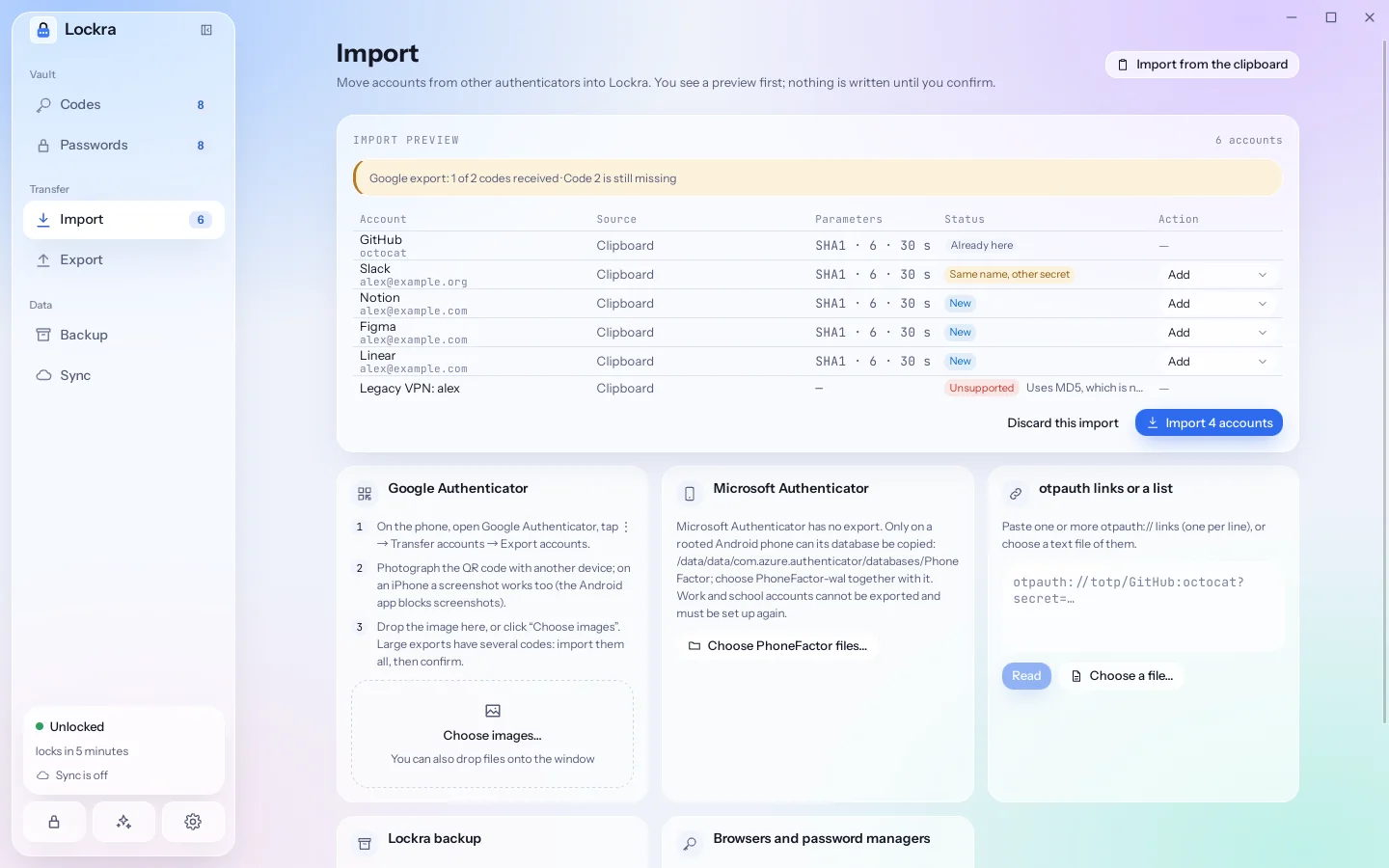
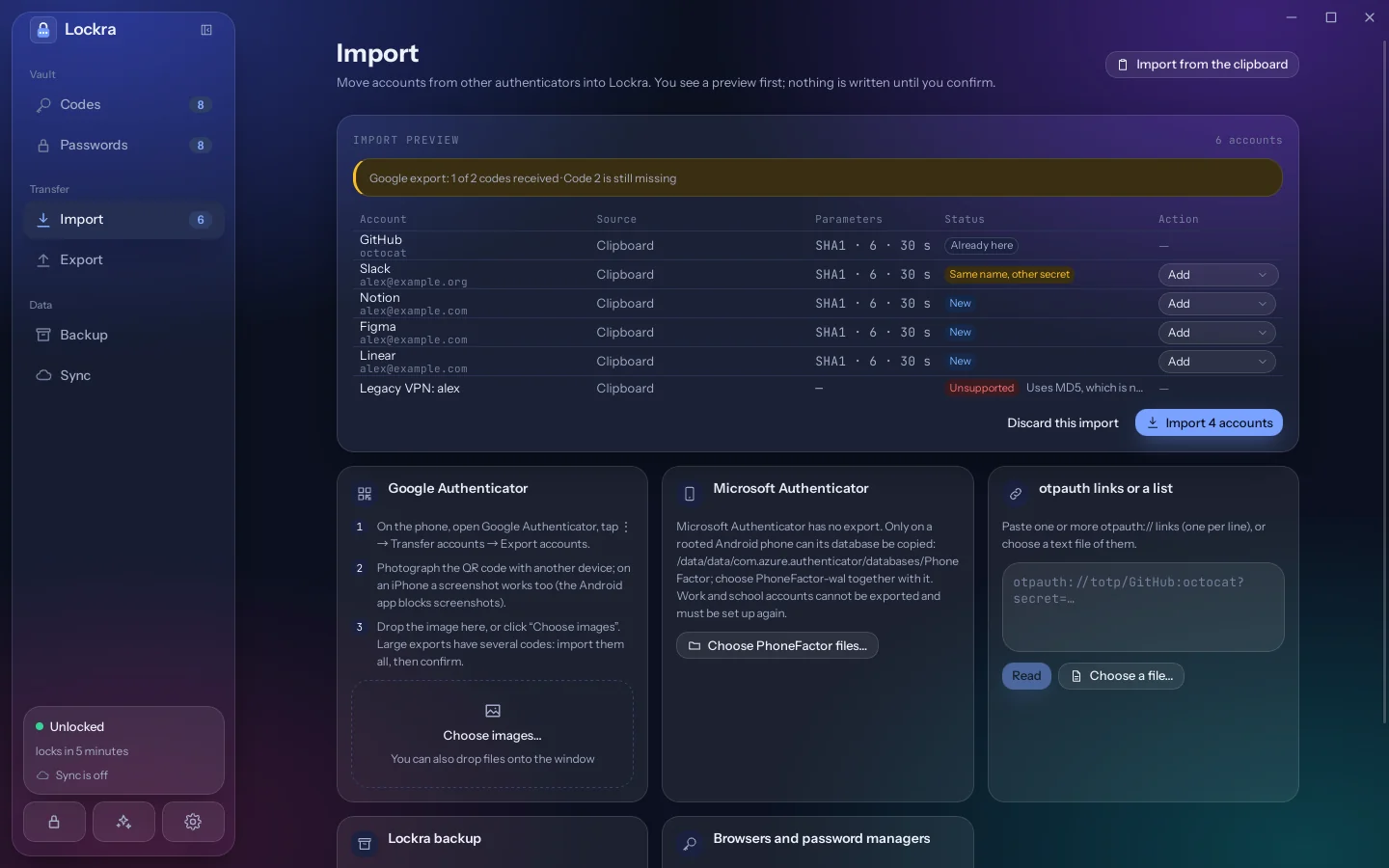
Google Authenticator puts up to ten accounts on each code; a larger export spreads over several codes, numbered on the phone. The preview says how many codes of the export it has seen and which are still missing, so you can add the rest before importing. Codes can be added in any order.
What the preview shows
Each account found is marked:
| Mark | Meaning | What happens by default |
|---|---|---|
| New | not in the vault yet | added |
| Already here | the same secret is already in the vault | skipped |
| Same name, other secret | an account with this service and name exists with another secret | added beside it; you can choose Replace existing |
| Duplicate | the same account appears twice in this import | skipped |
| Unsupported | the account cannot be used, with the reason | skipped |
Google Authenticator can hold accounts that use the MD5 algorithm, which no current service uses; Lockra lists them as unsupported.
Moving accounts to Google Authenticator
- Open Export and choose Google Authenticator.
- Tick the accounts to move. Accounts Google Authenticator cannot take are greyed out, with the reason.
- Enter the master password and choose Show QR codes. On a phone with fingerprint unlock on, leave the master password empty and verify your fingerprint instead.
- On the phone, tap ⋮ › Transfer accounts › Import accounts and scan each code.
Beside each code Lockra shows the current code of every account on it: after scanning, the phone should show the same codes. The codes hide after two minutes without activity; choose Show QR codes again to continue.
Google Authenticator's transfer format has no period setting, so only 30-second and counter-based accounts with 6 or 8 digits can be moved to it. Each code holds up to ten accounts, fewer when their names are long.